Manage Layout Templates
Prerequisites
- Business or Enterprise plan.
- Admin access with relevant permission
⠀
Create a Layout Template
- Sign in to the Matrx admin portal.
- In the navigation menu, unfold Meeting Management, and click Layout Templates.
- Click New Layout Template
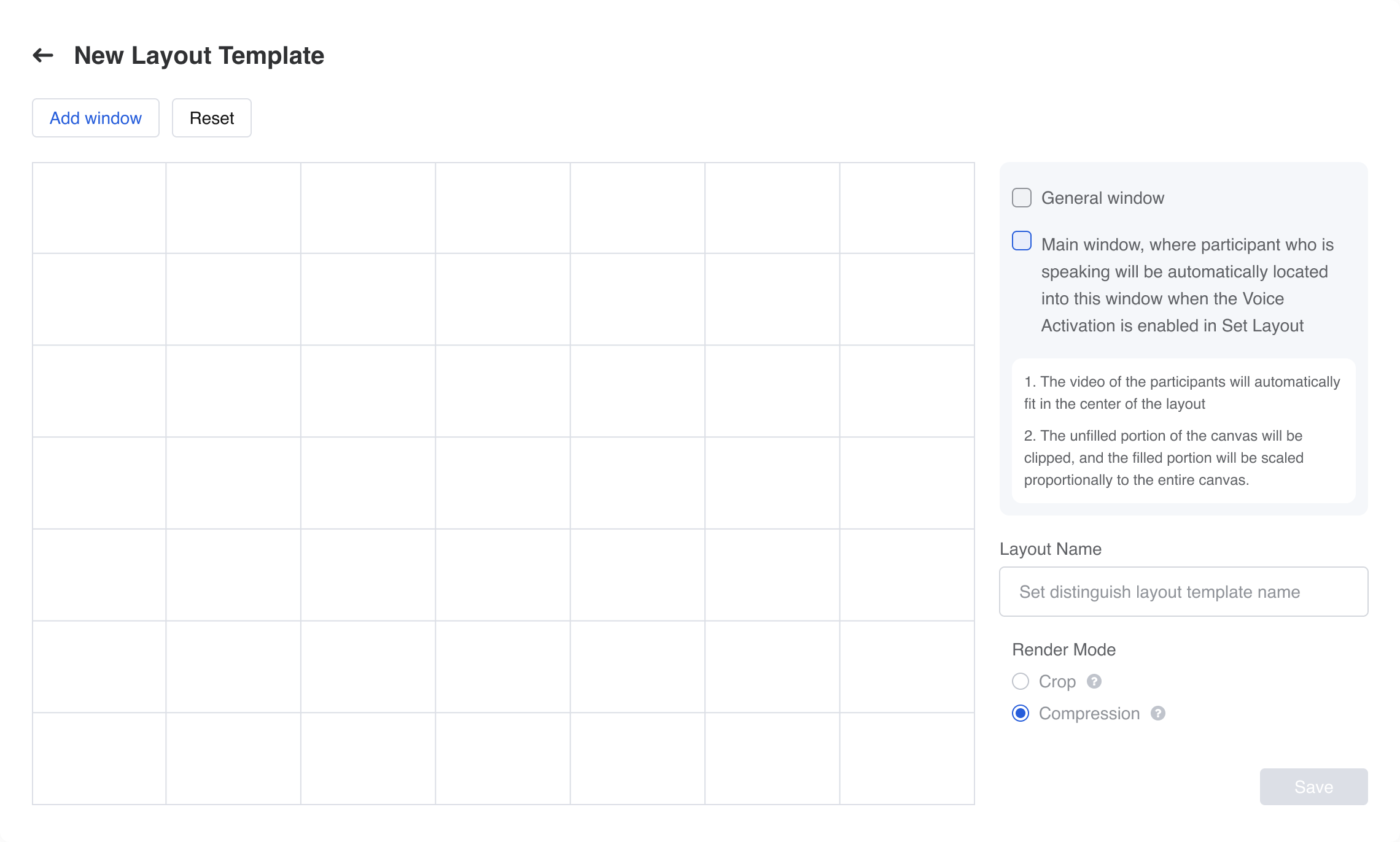 When create a layout template. You can:
 - Add window. There are two kinds of windows
- The first added window is the main window
 by default. The main window cannot be deleted. Unless you reset the whole view. The main window is where participant who is speaking will be automatically located into this window when the Voice Activation is enabled in Set Layout
 - The windows added later are general window
 .
.
- The first added window is the main window
- Move the location of the windows
- Drag the size of the windows
- Delete a window. You can select a general window, and click the delete button on the top right corner to delete it.
- Reset the layout. Which means you will clear all the windows you’ve added.
- Set the name of the Layout. Up to 20 charactors.
- Select the render mode of the layout.
- Crop: In this mode, all views will fill the entire meeting window according to the grid ratio. The edge info of the video in each view will be cropped
- Compression: In this mode, all views will be scaled in accordance with the 16:9 ratio and fully displayed in each view. Parts that do not meet the ratio will be filled with black canvas.
⠀Edit a Layout Template
- In the Admin Portal, unfold Meeting Management, and click Layout Templates.
- Find the template you want to edit.
- Click the Edit button
 .
. - You can edit the layout, and the name of the template.
⠀Delete a Layout Template
- In the Admin Portal, unfold Meeting Management, and click Layout Templates.
- Find the template you want to delete.
- Click the Delete button
 . Confirm the delete action.
⠀
Frequently Asked Questions
What happens if I leave some white spaces empty when I create a template?
- The video of the participants will automatically fit in the center of the layout
- The unfilled portion of the canvas will be clipped, and the filled portion will be scaled proportionally to the entire canvas.
⠀
Why can I see the video template I just created in meeting control?
Each custom layout templates belong to an enterprise. Please check you created the template for the correct enterprise.
What is the main window for?
The main window is where participant who is speaking will be automatically located into this window when the Voice Activation is enabled in Set Layout